.png)
Demo Script mID+
Use case summary
The demo objectives for the mobile application encompass a variety of user goals aimed at establishing and utilizing digital identity and credentials. These objectives are designed to demonstrate the app's comprehensive capabilities, ranging from user registration and document verification to the management and sharing of digital credentials.
Demo Flow
App Setup
Download and open the app.
Agree to terms and conditions.
Enrollments Options
ADAPTIVE ID (ID Card/Passport):
Tap "Get Started" → "Scan" (MRZ) → Verify scan → NFC read → Selfie (optional) → Input PIN → Create credential.
Adaptive Identity Extended:
Scan eDocument (ID Card or Passport) → NFC read → Complete email and mobile number → Choose service level (Standard or Premium with sample credit card) → Selfie (optional) → Create PIN → Define password for online Digital ID.
Registration Code/Trip Code:
Tap "Get Started" → Choose scan or enter code → Selfie (optional) → Input PIN → Create credential.
eID Verification:
Scan (MRZ) → NFC read → Selfie (optional) → Review data → Create/update online account (optional) → Create credential.
Demo Account:
Tap "Get Started" → "Create User" → Input PIN → Create credential.
Viewing/Sharing Credentials
License/ID/Travel Credential:
View → Flip to show → Share (QR, NFC, Bluetooth).
Health Credentials:
View vaccination proof/certificate → Show PDF or scan QR.
Settings
Change PIN (optional).
Customize data-sharing preferences.
Pre-Requisites
A way to register on the application
An official Document issued to you (either a passport or national ID)
A registration code
A trip code
If you do not have any of the preview options you can use our Demo Account
For the Holder Phone you will need
A Mobile Phone with NFC capabilities
A Mobile Phone with a camera
If you want to transfer information using Bluetooth the Phone must have that functionality
For the Verifier Phone you will need
A Mobile Phone with NFC capabilities
A Mobile Phone with a camera
If you want to transfer information using Bluetooth the Phone must have that functionality
Instructions
Download the application
In the Play Store
Access [ToDo]
In the App Store
Access [ToDo]
Onboarding
Accept the terms and conditions
Press on the box "I accept the terms and conditions"
Press the "Accept and Start" button

Here you can choose the “Config Sequence“ option to get access to different onboarding flows. The default flow is “Adaptive identity“.
Adaptive Identity (Onboarding)
A Smart Credential is generated for mobile devices, utilizing the data from the physical eDocument (Passport or National ID). You require a previews Onboarding on the CIO (Check Demo Script CIO | Create-User )
Press “Get Started”
Scan MRZ
Press “Scan“
Using the camera on your phone scan the MRZ code on your document.
Check the validity of the scan data
Tap [Validate]
Tap[Next]
Hold Your Document to the back of your phone to read the NFC data
Tap [Take selfie]
Take a selfie following the instructions on the screen
This step can be skip pressing“skip”
Input Pin and Pin confirmation (eg.: 111111)
Tap [Create Smart Credential]
Adaptive Identity + (Onboarding)
A Smart Credential is generated for mobile devices, utilizing the data from the physical eDocument (Passport or National ID). If you already have a CIO account your data will be updated, if you do not you an account will be created.
Press “Continue”
Scan MRZ
Press “Scan“
Using the camera on your phone scan the MRZ code on your document.
Check the validity of the scan data
Tap [Validate]
Scan NFC
Tap[Next]
Hold Your Document to the back of your phone to read the NFC data
Input your information
Input your email
Input your phone number
Select the payment method
Standard: Free method
Premium: Muckup paid flow
Tap [Take selfie]
Take a selfie following the instructions on the screen
This step can be skip pressing“skip”
Input Pin and Pin confirmation (eg.: 111111)
Tap [Create Smart Credential]
Registration Code/Trip Code: (Onboarding)
A Smart Credential is generated for mobile devices, utilizing the data from the physical eDocument (Passport). You require a previously issued Registration or Trip code.
Press “Get Started”
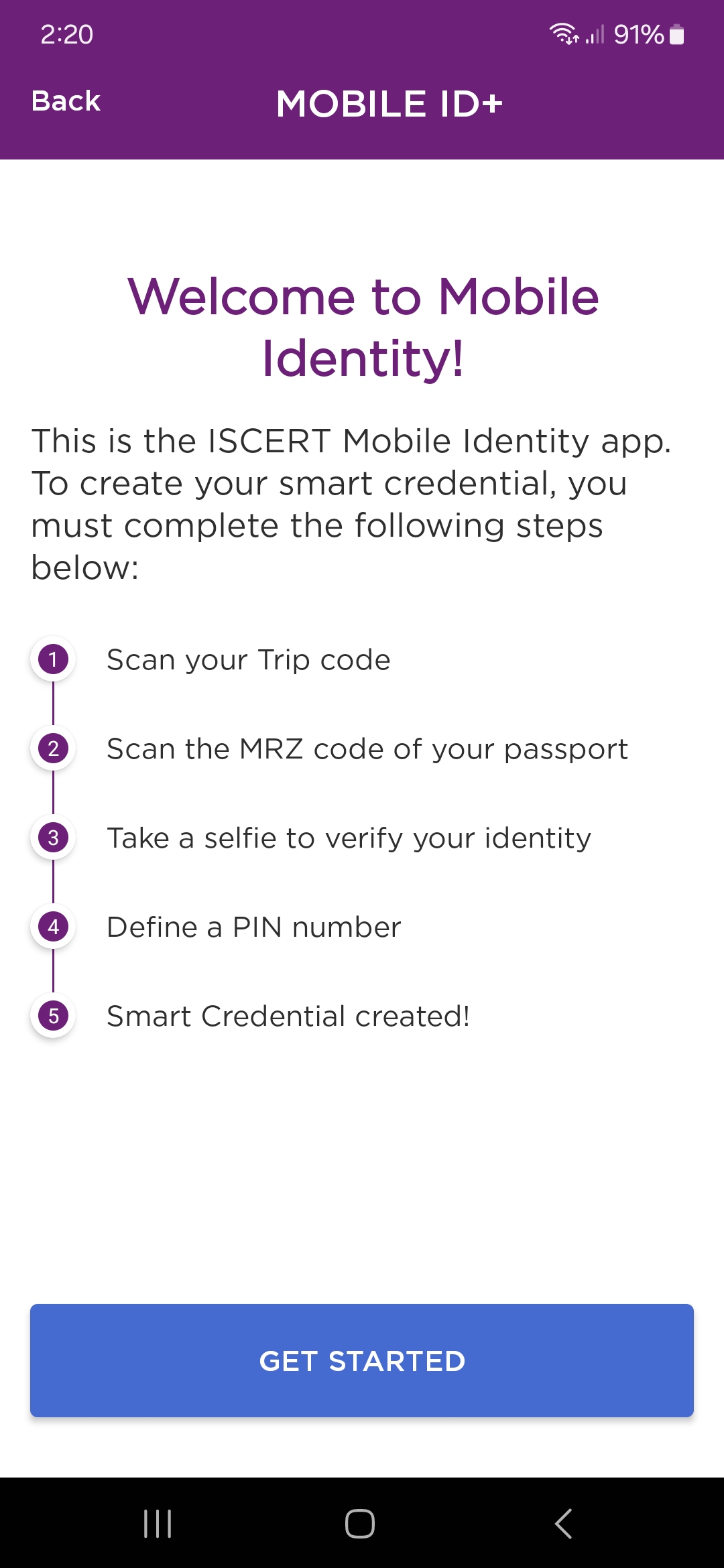
Scan QR Code
Press “Scan Trip Code“.
Using the camera on your phone scan the QR code.
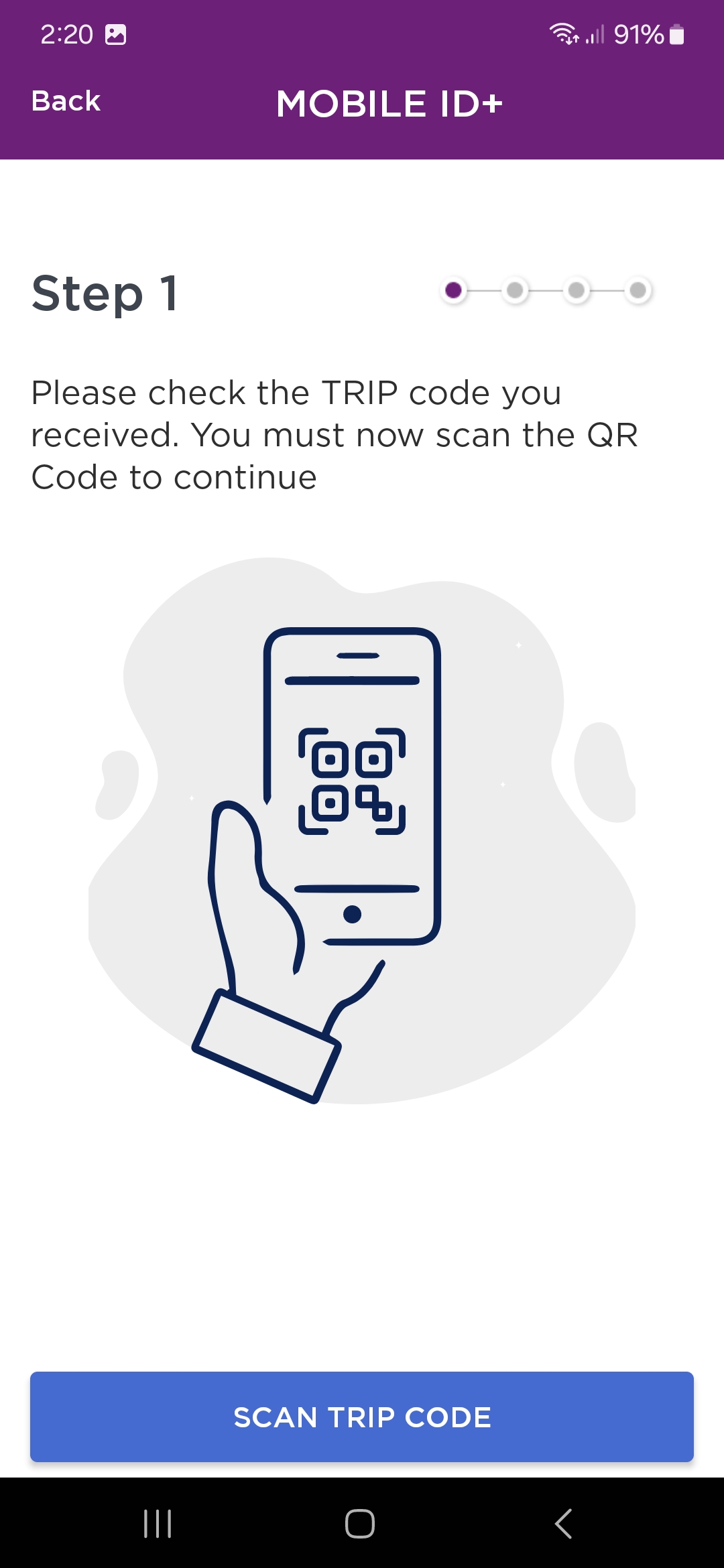
Scan MRZ
Press “Scan“.
Using the camera on your phone scan the MRZ code on your document.
Check the validity of the scan data
Tap [Validate]
Tap[Next]
Tap [Take selfie]
Take a selfie following the instructions on the screen
This step can be skip pressing“skip”
Input Pin and Pin confirmation (eg.: 111111)
Tap [Create Smart Credential]
Download Aditional credentials
Tap on the top right gear icon to access the settings
Activate the [Get certificates from Issuars] option